If you build proposals, estimates, or rate cards in InDesign, you know this loop. The numbers live in a spreadsheet. You lay the table out beautifully in InDesign. Then the client revises the scope—two new line items, a few prices nudged, a different total—and you’re back in InDesign, re-typing cells by hand and praying you didn’t fat-finger a figure.
The usual shortcuts don’t really help:
- Data merge will pour the numbers in, but it won’t respect your brand fonts and table styling. You end up restyling everything.
- Copy-paste from Excel brings the data and throws away your formatting.
- A one-off script works—until the number of rows changes. Add a line item and the script needs rewriting.
That last one is the real killer. The structure keeps moving, so nothing you automate stays automated.
Here’s a proposal with its original pricing—four line items, a $14,500 total—in the studio’s brand colour and typeface:
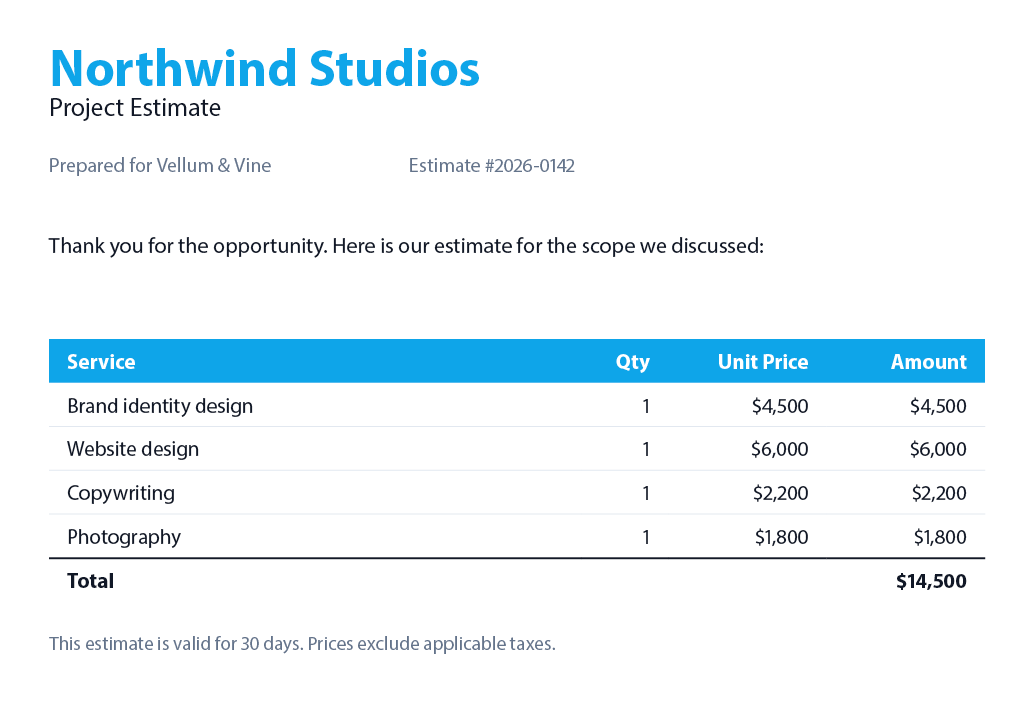
Now the client sends back a revised spreadsheet. It has six line items instead of four, different prices, and a new total. Instead of editing the table by hand, you hand Claude (or any other AI assistant) the open document and the new pricing.xlsx, and ask:
Replace the line items in the pricing table in InDesign with the rows from this spreadsheet, format the prices as currency, and recompute the total. Keep the table’s existing styling exactly—the header colour, the font, the column widths, the bold total row—and add or remove rows as needed.
A moment later:
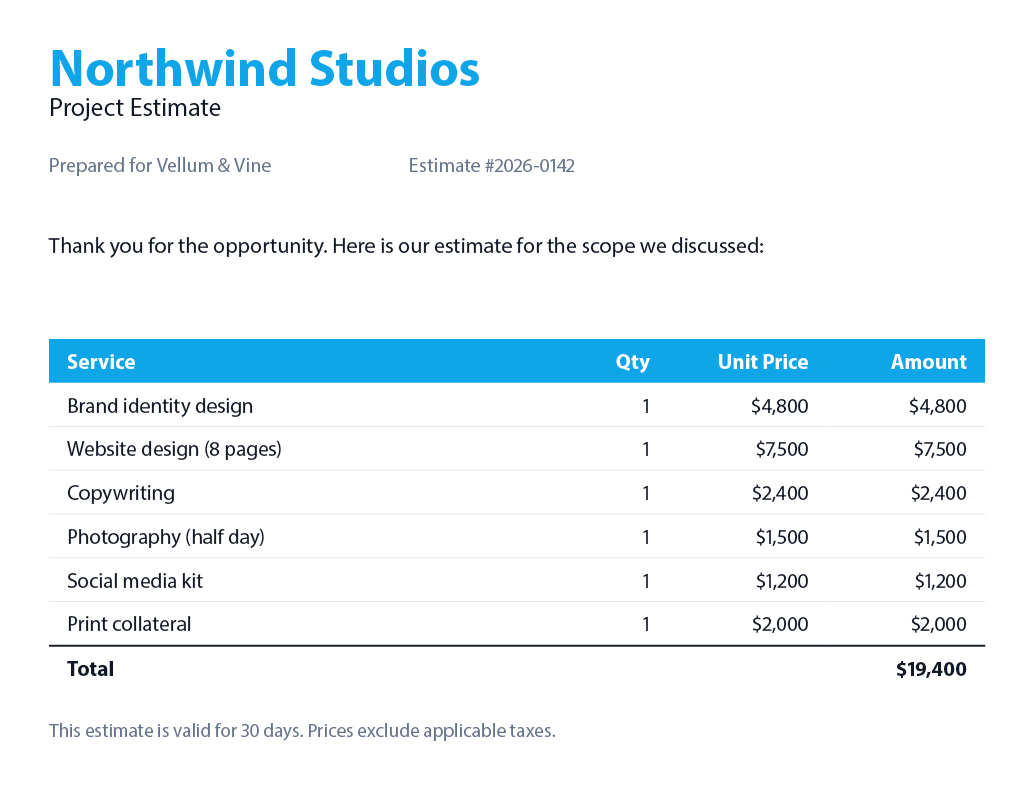
Two rows added, every price updated, the total recomputed to $19,400—and the blue header, the Myriad Pro typeface, the column widths, and the bold total row all untouched. The only thing that changed is the thing that was supposed to change: the data.
Why this works where the shortcuts don’t
The hard part of “update a table from a spreadsheet” was never reading the spreadsheet. It’s re-applying your styling to a different shape of data. Data merge can’t do it because it doesn’t understand your table as a designed object. A custom script can do it—but now you’re writing and maintaining code, and the quick version almost always hardcodes the layout, so it breaks the first time the data changes shape.
Sidekick lets Claude work the way you would: read the new numbers, adjust the table to fit them—adding or removing rows—drop the values in, recompute the total, and then make sure the new rows carry the same font, size, and weight as the rest of the table. The header stays the header. The total stays bold. Nothing gets rebranded by accident.
Because it works from the document you already designed, there’s no template to maintain and no merge fields to set up. The next revision is the same one sentence.
Try it yourself
We’ve put this exact example—the original proposal, the revised spreadsheet, and the result—in the Sidekick examples repository. Clone it, open before.idml in InDesign, hand Claude the prompt above along with pricing.xlsx, and watch it rebuild the table.
The company and the pricing are made up, the typeface is Myriad Pro (which ships with InDesign), so the example opens cleanly for anyone.
Requirements
- Adobe InDesign with the Sidekick plugin installed
- Claude Desktop or Claude Code (or any other MCP-compatible AI assistant)
- A document with a pricing table, and the spreadsheet whose numbers should drive it
The bigger your tables—and the more often they change—the more this pays off. A single estimate is nice to automate. A catalogue of them is a different day entirely.